

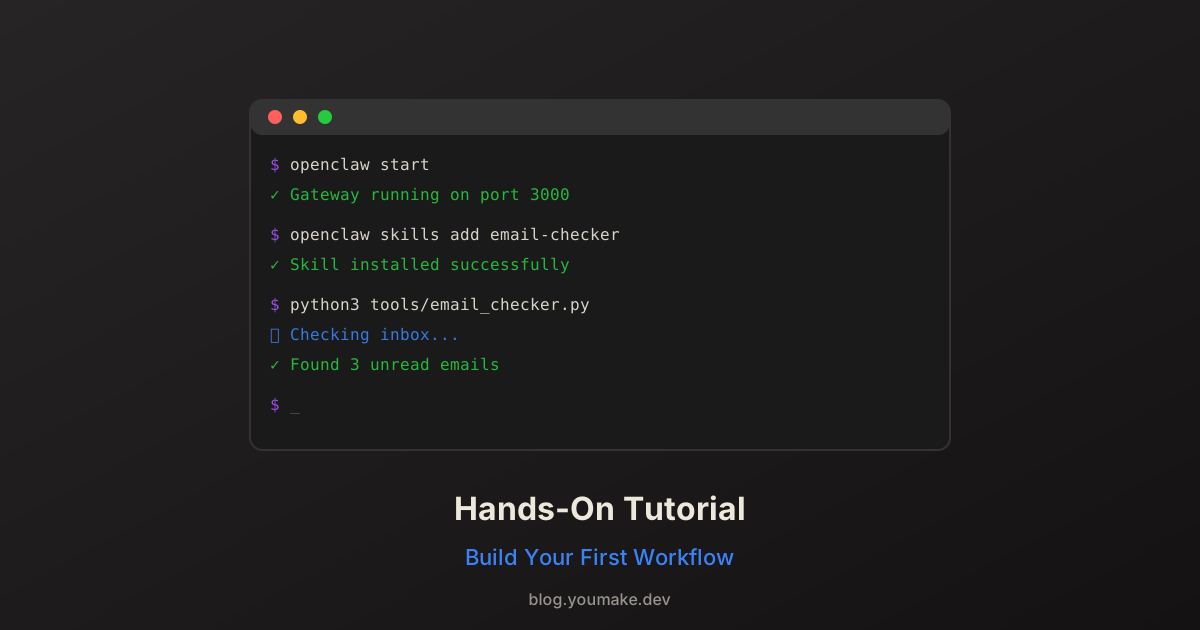
Theory is great, but you learn by doing. In this hands-on tutorial, we'll build a complete OpenClaw workflow from scratch—an email monitoring system that alerts you to important messages.
What We're Building
By the end of this tutorial, you'll have:
- Email monitoring that checks your inbox every 30 minutes
- Smart filtering that identifies urgent emails
- Telegram alerts for messages that need attention
- Daily digest summarizing all emails
Time Required: 30 minutes Skill Level: Beginner
Prerequisites
Before starting, ensure you have:
- OpenClaw installed and running (installation guide)
- Telegram configured as a channel
- Gmail account (or any IMAP-compatible email)
Step 1: Set Up Email Access
First, let's give OpenClaw access to your email.
Create an App Password (Gmail)
- Go to Google Account Security
- Enable 2-Factor Authentication if not already enabled
- Go to App Passwords
- Create a new app password for "OpenClaw"
- Copy the 16-character password
Store Credentials Securely
# Create config directory
mkdir -p ~/.config/gmail

# Store credentials (replace with your values)
echo "your-email@gmail.com" > ~/.config/gmail/email
echo "xxxx-xxxx-xxxx-xxxx" > ~/.config/gmail/app_password

# Secure the files
chmod 600 ~/.config/gmail/*
Step 2: Create the Email Checker Script
Create a new file in your workspace:
mkdir -p ~/openclaw/workspace/tools
Create tools/email_checker.py:
#!/usr/bin/env python3
"""
Email Checker for OpenClaw
Checks Gmail inbox and returns summary of new/important emails
"""

import imaplib
import email
from email.header import decode_header
from pathlib import Path
from datetime import datetime, timedelta

# Load credentials
EMAIL = Path.home() / ".config/gmail/email"
PASSWORD = Path.home() / ".config/gmail/app_password"

def get_credentials():
    return (
        EMAIL.read_text().strip(),
        PASSWORD.read_text().strip()
    )

def check_emails(hours_back=24, max_emails=20):
    """Check for new emails in the last N hours."""
    username, password = get_credentials()

    # Connect to Gmail
    mail = imaplib.IMAP4_SSL("imap.gmail.com")
    mail.login(username, password)
    mail.select("inbox")

    # Search for recent emails
    since_date = (datetime.now() - timedelta(hours=hours_back)).strftime("%d-%b-%Y")
    _, messages = mail.search(None, f'(SINCE "{since_date}")')

    email_ids = messages[0].split()[-max_emails:]  # Get last N

    results = []
    for email_id in reversed(email_ids):  # Most recent first
        _, msg_data = mail.fetch(email_id, "(RFC822)")
        msg = email.message_from_bytes(msg_data[0][1])

        # Decode subject
        subject, encoding = decode_header(msg["Subject"])[0]
        if isinstance(subject, bytes):
            subject = subject.decode(encoding or "utf-8")

        # Get sender
        sender = msg.get("From", "Unknown")

        # Get date
        date = msg.get("Date", "Unknown")

        # Check if unread (simplified check)
        _, flags_data = mail.fetch(email_id, "(FLAGS)")
        is_unread = b"\\Seen" not in flags_data[0]

        results.append({
            "subject": subject,
            "from": sender,
            "date": date,
            "unread": is_unread
        })

    mail.logout()
    return results

def is_urgent(email_data):
    """Determine if an email is urgent based on keywords."""
    urgent_keywords = [
        "urgent", "asap", "important", "action required",
        "deadline", "immediate", "critical", "emergency"
    ]

    subject_lower = email_data["subject"].lower()
    return any(keyword in subject_lower for keyword in urgent_keywords)

def format_summary(emails):
    """Format emails into a readable summary."""
    if not emails:
        return "📭 No new emails in the last 24 hours."

    unread = [e for e in emails if e["unread"]]
    urgent = [e for e in emails if is_urgent(e)]

    summary = f"📧 **Email Summary**\n\n"
    summary += f"Total: {len(emails)} | Unread: {len(unread)} | Urgent: {len(urgent)}\n\n"

    if urgent:
        summary += "🚨 **Urgent:**\n"
        for e in urgent:
            summary += f"  • {e['subject'][:50]}\n    From: {e['from'][:30]}\n"
        summary += "\n"

    if unread:
        summary += "📬 **Unread:**\n"
        for e in unread[:5]:  # Show top 5
            summary += f"  • {e['subject'][:50]}\n    From: {e['from'][:30]}\n"

    return summary

if __name__ == "__main__":
    emails = check_emails()
    print(format_summary(emails))
Make it executable:
chmod +x tools/email_checker.py
Test It
python3 tools/email_checker.py
You should see a summary of your recent emails.
Step 3: Create an OpenClaw Skill
Skills tell OpenClaw how to perform specific tasks. Create skills/email/SKILL.md:
# Email Management Skill

## Check Emails

When asked to check emails:
1. Run `python3 tools/email_checker.py`
2. Report the summary
3. Offer to read specific emails if any are urgent

## Mark as Read

When asked to mark an email as read:
- Currently not supported - ask user to mark in Gmail

## Compose Email

When asked to compose/draft an email:
1. Ask for recipient, subject, and key points
2. Draft the email
3. Save to workspace/drafts/
4. Notify user for review
Step 4: Set Up Automatic Checking
Now let's make OpenClaw check emails automatically using cron jobs.
Option A: Using HEARTBEAT.md
Add to your HEARTBEAT.md:
## Email Check (every heartbeat)

If it's been more than 30 minutes since last email check:
1. Run email checker script
2. If urgent emails exist, alert immediately
3. Log check time to memory/heartbeat-state.json
Option B: Using Cron Jobs
Create a scheduled task:
# Through OpenClaw
"Schedule an email check every 30 minutes that alerts me to urgent emails"
Or manually via the cron tool:
name: "📧 Email Check"
schedule:
  kind: every
  everyMs: 1800000  # 30 minutes
payload:
  kind: systemEvent
  text: "Check emails and alert if any urgent messages"
sessionTarget: main
Step 5: Add Daily Digest
Create a daily summary that runs every evening.
Add to HEARTBEAT.md or create a cron job for 6 PM:
## Daily Email Digest (6 PM)

At 6 PM:
1. Run email checker for last 24 hours
2. Categorize: Work, Personal, Newsletters, Other
3. Summarize key threads
4. List action items
5. Send digest to Telegram
Step 6: Test the Complete Workflow
Let's test everything works together.
Manual Test
Send yourself a test email with "URGENT" in the subject, then:
"Check my emails"
OpenClaw should detect and highlight the urgent email.
Automation Test
Wait for the scheduled check (or trigger it manually):
"Run the email heartbeat check now"
Verify Logging
Check that state is being tracked:
cat memory/heartbeat-state.json
Extending the Workflow
Now that the basic workflow works, you can extend it:
Add Priority Rules
def get_priority(email_data):
    """Assign priority based on sender and content."""
    vip_senders = ["boss@company.com", "client@important.com"]

    sender = email_data["from"].lower()

    if any(vip in sender for vip in vip_senders):
        return "high"
    elif is_urgent(email_data):
        return "high"
    else:
        return "normal"
Add Response Drafting
## Auto-Draft Responses

For routine emails (meeting confirmations, etc.):
1. Identify email type
2. Generate appropriate response
3. Save to drafts folder
4. Notify user for review
Add Email Threading
Group related emails together:
def group_by_thread(emails):
    """Group emails by conversation thread."""
    threads = {}
    for e in emails:
        # Simple thread detection by subject
        subject = e["subject"].lower()
        subject = subject.replace("re:", "").replace("fwd:", "").strip()

        if subject not in threads:
            threads[subject] = []
        threads[subject].append(e)

    return threads
Troubleshooting
"Authentication Failed"
- Verify app password is correct
- Ensure 2FA is enabled on Gmail
- Check if "Less secure app access" is needed (shouldn't be with app passwords)
"No Emails Found"
- Check the date range (default is 24 hours)
- Verify the IMAP server is accessible
- Try
mail.select("INBOX")instead ofmail.select("inbox")
"Skill Not Found"
- Ensure skill directory is in the right location
- Check SKILL.md syntax
- Restart OpenClaw to reload skills
What You've Learned
Congratulations! You've built a complete workflow that:
✅ Connects to external services (Gmail) ✅ Processes data (email parsing) ✅ Makes decisions (urgency detection) ✅ Automates tasks (scheduled checks) ✅ Communicates results (Telegram alerts)
This same pattern applies to any integration: connect, process, decide, automate, communicate.
Next Steps
- Add more email providers (Outlook, Yahoo)
- Integrate with calendar for meeting-related emails
- Build a web dashboard for email analytics
- Add sentiment analysis for customer emails
For more OpenClaw tutorials, see automation with cron jobs and 10 real-world use cases.